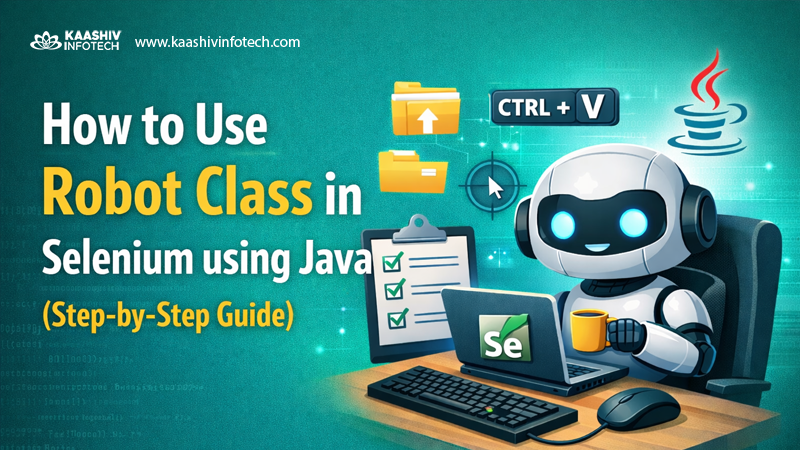
Robot Class in Java – Automation testing with Selenium is powerful, but sometimes it cannot handle system-level operations like file uploads, keyboard shortcuts, or OS pop-ups. That’s where the Robot Class in Java becomes extremely useful.
In this guide, you’ll learn what the Robot class is, why it is used in Selenium, and how to implement it with real examples.
What is Robot Class in Java?
The Robot class is part of the java.awt package. It is used to simulate keyboard and mouse actions programmatically.
Unlike Selenium WebDriver, which interacts only with web elements inside the browser, the Robot class can interact with:
- Native OS pop-ups
- File upload dialogs
- Keyboard shortcuts (Ctrl + C, Ctrl + V)
- Mouse movements and clicks

Why Use Robot Class in Selenium?
Selenium has limitations when dealing with system-level interactions. For example:
- File upload pop-ups cannot be handled directly
- Download dialogs are outside browser control
- CAPTCHA and OS alerts are not accessible
Robot Class helps overcome these limitations by:
- Simulating real user actions
- Sending keyboard inputs
- Performing mouse operations
- Handling non-HTML popups
Prerequisites
Before using Robot class, ensure:
- Java is installed
- Selenium WebDriver is configured
- IDE like IntelliJ or Eclipse is ready
- Required dependencies are added (Maven/Gradle)
Import Required Packages

import java.awt.Robot;
import java.awt.event.KeyEvent;
Step 1: Create Robot Object
Robot robot = new Robot();
This object will be used to perform all keyboard and mouse operations.
Step 2: Basic Keyboard Actions
Example: Press and Release Keys
robot.keyPress(KeyEvent.VK_ENTER);
robot.keyRelease(KeyEvent.VK_ENTER);
Example: Typing Text
robot.keyPress(KeyEvent.VK_H);
robot.keyRelease(KeyEvent.VK_H);

robot.keyPress(KeyEvent.VK_I);
robot.keyRelease(KeyEvent.VK_I);
Step 3: Use Robot with Selenium

Let’s integrate Robot class into a Selenium test.
Example: Open Browser
WebDriver driver = new ChromeDriver();
driver.get("https://example.com");
Step 4: Handle File Upload using Robot Class
Normally, Selenium uses sendKeys() for file upload. But when there’s a system file dialog, use Robot.
Steps:
- Click Upload Button
- Copy file path
- Paste using Robot
- Press Enter
Full Code:
import org.openqa.selenium.By;
import org.openqa.selenium.WebDriver;
import org.openqa.selenium.chrome.ChromeDriver;
import java.awt.Robot;
import java.awt.event.KeyEvent;
import java.awt.Toolkit;
import java.awt.datatransfer.StringSelection;

public class RobotExample {
public static void main(String[] args) throws Exception {

WebDriver driver = new ChromeDriver();
driver.get("https://example.com/upload");

// Click upload button
driver.findElement(By.id("upload")).click();

// Copy file path
StringSelection filePath = new StringSelection("C:\\Users\\file.txt");
Toolkit.getDefaultToolkit().getSystemClipboard().setContents(filePath, null);

Robot robot = new Robot();
Thread.sleep(2000);

// Paste (CTRL + V)
robot.keyPress(KeyEvent.VK_CONTROL);
robot.keyPress(KeyEvent.VK_V);

robot.keyRelease(KeyEvent.VK_V);
robot.keyRelease(KeyEvent.VK_CONTROL);

// Press Enter
robot.keyPress(KeyEvent.VK_ENTER);
robot.keyRelease(KeyEvent.VK_ENTER);
}
}
Step 5: Mouse Actions using Robot

Move Mouse
robot.mouseMove(500, 300);
Click Mouse
robot.mousePress(InputEvent.BUTTON1_DOWN_MASK);
robot.mouseRelease(InputEvent.BUTTON1_DOWN_MASK);
Step 6: Scrolling using Robot
robot.mouseWheel(5); // Scroll down
robot.mouseWheel(-5); // Scroll up
Step 7: Keyboard Shortcuts
Copy (CTRL + C)
robot.keyPress(KeyEvent.VK_CONTROL);
robot.keyPress(KeyEvent.VK_C);

robot.keyRelease(KeyEvent.VK_C);
robot.keyRelease(KeyEvent.VK_CONTROL);
Paste (CTRL + V)
robot.keyPress(KeyEvent.VK_CONTROL);
robot.keyPress(KeyEvent.VK_V);

robot.keyRelease(KeyEvent.VK_V);
robot.keyRelease(KeyEvent.VK_CONTROL);
Step 8: Add Delays
Robot executes actions very fast, so you may need delays.
Thread.sleep(2000);
OR
robot.delay(2000);
Real-Time Use Cases of Robot Class
1. File Upload Pop-ups
When upload buttons trigger OS dialogs.
2. Download Confirmation
Handling save dialogs in browsers.
3. Keyboard Navigation
Simulating tab navigation or shortcuts.
4. Handling Alerts Outside DOM
System alerts not controlled by Selenium.
Advantages of Robot Class
- Works with system-level operations
- Simulates real user behavior
- Supports both keyboard and mouse actions
- Useful for edge cases Selenium cannot handle

Limitations of Robot Class
- Depends on screen resolution
- Not reliable in headless mode
- Hard to debug
- Slower compared to WebDriver methods
- Requires focus on the active window
Best Practices
- Always add delays where needed
- Use Robot only when Selenium cannot handle the scenario
- Avoid using it for normal web element interactions
- Ensure browser window is active
- Keep screen resolution consistent
Alternative Approaches
Instead of Robot class, consider:
sendKeys()for file uploads (if possible)- AutoIT (Windows automation)
- Sikuli (Image-based automation)
Conclusion
The Robot class in java is a powerful tool when Selenium alone is not enough. It allows you to automate keyboard and mouse actions at the OS level, making it ideal for handling file uploads, pop-ups, and other system interactions.
However, it should be used carefully and only when necessary, as it can make your tests less stable if not handled properly.
By combining Selenium WebDriver with the Robot class, you can achieve end-to-end automation even in complex scenarios.
Kaashiv Infotech Offers Full Stack Java Developer Course, Java Internship & More Programming Courses Visit Our Website www.kaashivinfotech.com.