The Ultimate Guide to the Excel IF Formula (with Examples)
Let’s be clear: if you’re not using the Excel IF formula, you’re not using Excel to its full potential. Most people still spend hours on manual, repetitive tasks—things Excel can handle in seconds with the right logic.
In fact, data from the American Productivity & Quality Center shows that inefficient data handling can cost companies thousands of dollars per employee every year. That’s not just time lost—it’s real money.
The most direct way to reclaim that time and add measurable value is by mastering Excel’s logical capabilities, starting with the IF function. It’s what transforms a static, lifeless spreadsheet into a dynamic, intelligent report that can respond automatically to your data.
This comprehensive guide—and its accompanying video tutorial—is designed to be the only resource you’ll ever need. While the video shows you the how, this article gives you the tools to do: every formula is here to copy and paste, and you’ll also get a downloadable practice file to follow along.
We’ll take you step-by-step, from a basic excel if else formula to mastering the excel if function multiple conditions that professionals use every day.

kaashiv infotech excel if
The Basics: A Deep Dive into the Excel IF Formula And Excel IF ELSE Formula
Before tackling complex logic, you must master the building block: the excel if else formula. This function is designed to handle a single decision with two possible outcomes. The best way to understand it is to think of it as a simple conversation with Excel:
Your thought process:
- 👉 IF this condition is true…
- ✅ THEN return this specific value…
- ❌ ELSE return this other value.
This “if-then-else” structure is perfectly captured in Excel’s syntax:
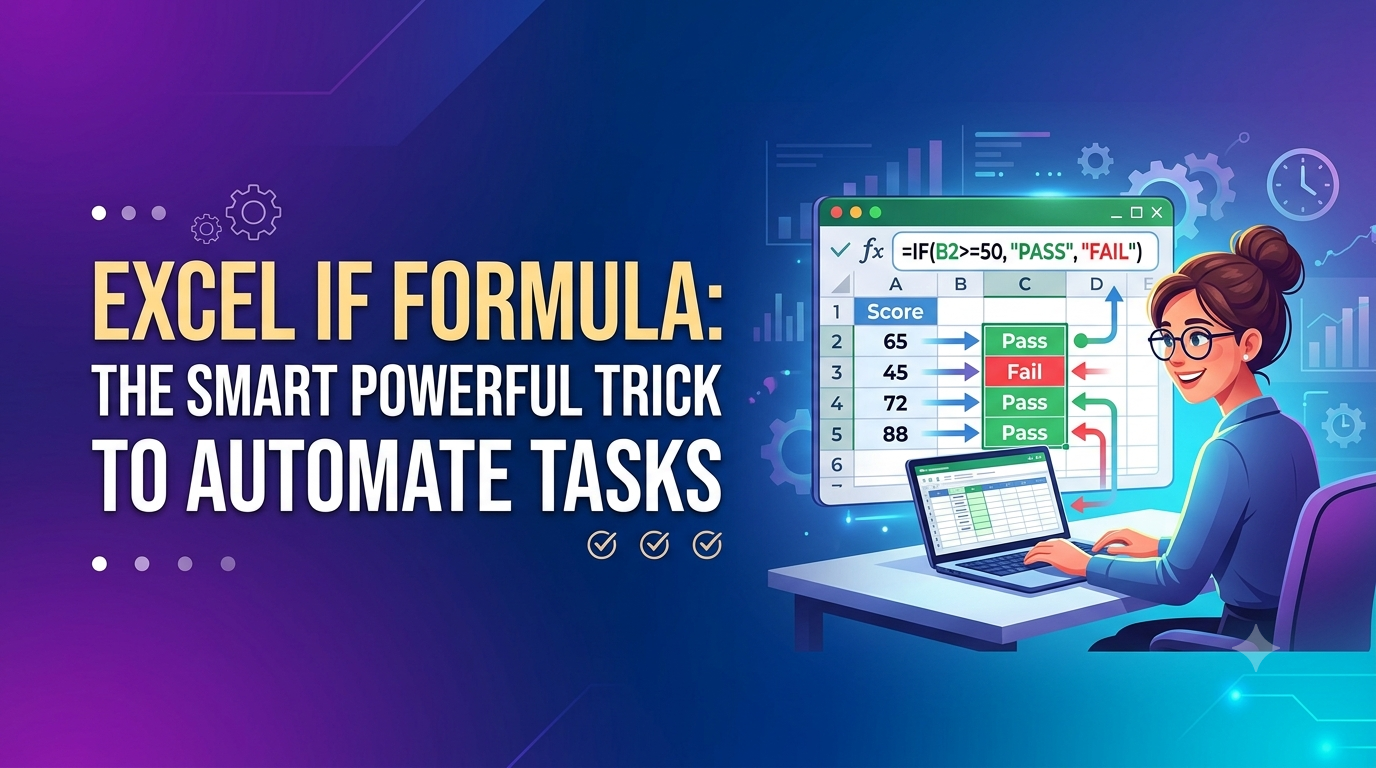
=IF(logical_test, value_if_true, value_if_false)
- logical_test: This is your question (e.g.,
Is the value in cell A2 greater than 50?). - value_if_true: This is your “THEN” answer. It’s what Excel will show if the answer to your question is YES.
- value_if_false: This is your “ELSE” answer. It’s the default value Excel will show if the answer to your question is NO.
This simple three-part structure is the foundation of every excel if else formula you will ever write.
Simple IF ELSE Example: “In Stock” or “Out of Stock”
Imagine you have an inventory list. Cell B2 contains the quantity of a product. You want cell C2 to automatically display “In Stock” if the quantity is greater than zero, and “Out of Stock” if it is not.
Here’s how you build the formula:
- Your Question (logical_test): Is the quantity in B2 greater than 0? →
B2>0 - Your “THEN” value (value_if_true): If it is, show “In Stock”.
- Your “ELSE” value (value_if_false): If it’s not, show “Out of Stock”.
Putting it all together, the formula is:
=IF(B2>0, "In Stock", "Out of Stock")
This is a perfect example of a binary decision handled beautifully by the excel if else formula. But what happens when you need more than two outcomes?
The Power Move: The Excel IF Function for Multiple Conditions
This is where most people get stuck, but it’s also where the real power lies. Handling an excel if function multiple conditions is essential for any real-world business logic.
Comparing Your Options: IF vs. IFS vs. AND/OR
Before we dive into examples, here’s a quick comparison of the tools you’ll use for multiple conditions.
| Function | Best For… | Key Characteristic |
|---|---|---|
| Nested IF | Multiple If-Else-If scenarios (the “old way”). | Becomes messy and hard to read quickly. |
| IFS | Multiple independent True/False checks (the “new way”). | Clean, linear, and easy to debug. Available in Excel 2019+. |
| IF with AND/OR | Checking multiple criteria for a single outcome. | AND requires all criteria to be true; OR requires only one. |
The Old Way: Nested IFs (and Why They’re Messy)
A nested IF is an IF function inside another. Think of them like Russian nesting dolls. They work, but they can quickly become a nightmare to read.
Let’s assign a letter grade (A, B, C, D) based on a score in cell A2:
=IF(A2>=90, "A", IF(A2>=80, "B", IF(A2>=70, "C", "D")))The Modern Solution #1: The IFS Function
Here is the same letter grade example using the much cleaner IFS function:
=IFS(A2>=90, "A", A2>=80, "B", A2>=70, "C", A2<70, "D")The Modern Solution #2: Using AND and OR with IF
Give a “Bonus” to a salesperson only if their sales (A2) are over $10,000 AND their region (B2) is “North”.
=IF(AND(A2>10000, B2="North"), "Bonus", "No Bonus")
Step-by-Step Tutorial: Real-World IF Formula Scenarios
Let’s move beyond theory. Here are two detailed, step-by-step business scenarios you can follow along with.
Scenario 1: Calculating Tiered Sales Commissions
The Goal: Calculate a commission based on these rules: Sales > $10k get 10%; Sales > $5k get 5%; otherwise 0%.
The Data Setup: Column B has “Total Sales”. We’ll write our formula in Column C, “Commission Amount”.
The Steps (The Formula): In cell C2, type the following formula, checking from highest to lowest:
=IFS(B2>10000, B2*0.1, B2>5000, B2*0.05, B2<=5000, 0)The Result: If B2 is $12,000, C2 will be $1,200. If B2 is $7,500, C2 will be $375.
Scenario 2: Assigning Inventory Status
The Goal: Automatically flag inventory status: “Out of Stock” (if 0), “Re-order Now” (if 1-10), “In Stock” (if > 10).
The Data Setup: Column B has “Quantity on Hand”. We’ll create a “Status” in Column C.
The Steps (The Formula): In cell C2, type the formula, checking for the most critical status first:
=IFS(B2=0, "Out of Stock", B2<=10, "Re-order Now", B2>10, "In Stock")The Result: If B2 is 0, C2 shows “Out of Stock”. If B2 is 8, C2 shows “Re-order Now”.
More Real-World Use Cases
- HR – Bonus Eligibility: Determine if an employee gets a yearly bonus. To be eligible, their Performance Rating (B2) must be “Exceeds” and their tenure (C2) must be over 1 year.
=IF(AND(B2="Exceeds", C2>1), "Eligible", "Not Eligible") - Finance – Invoice Status: Flag invoices that are overdue. If an invoice’s Due Date in cell B2 is before today’s date, mark it as “OVERDUE”.
=IF(B2<TODAY(), "OVERDUE", "OK")
Common Mistakes to Avoid
Getting an error? Check for these common pitfalls.
- Forgetting Quotes Around Text: Excel needs to know you’re dealing with text.
Wrong:=IF(A2>50, Pass, Fail)(Excel thinks Pass and Fail are named ranges)
Right:=IF(A2>50, "Pass", "Fail") - Incorrect Order in Nested IFs: When nesting, the order matters. If you check for a smaller value first, you might get an incorrect result.
Wrong:=IF(A2<80, "C", IF(A2<90, "B", "A"))(A score of 85 will incorrectly return “C”)
Right: Check from highest to lowest, or lowest to highest, consistently. - Mixing Numbers and Text Stored as Text: Sometimes a number is stored as text (e.g., “50” instead of 50). Your formula won’t work as expected.
Problem:=IF(A2=50, "Yes", "No")might return “No” even if A2 looks like 50.
Fix: You can force the value to be a number with=IF(VALUE(A2)=50, ...)or check for text with=IF(A2="50", ...).
🔑 Key Takeaways
- The basic
IFfunction is for one condition with two outcomes (if-else). - Use
IFSfor multiple, clean conditions in modern Excel. - Use
AND/ORto test multiple criteria for a single result. - Always put text inside double quotes
"". - Double-check your formula logic and the order of your checks.
The Career Angle: From Formula Writer to Problem Solver
Learning complex IF statements isn’t just about spreadsheets; it’s about learning to think like a business analyst. When you can translate a manager’s request into a logical formula, you demonstrate analytical thinking. You are no longer just entering data—you are building a business solution. This skill is incredibly valuable and a stepping stone to a career in data analysis.
Ready to Become an Excel Power User?
Mastering the IF function is a great start. But a career in data requires a deep understanding of advanced formulas, PivotTables, Power Query, and data visualization. At Kaashiv Infotech, our industry-expert trainers guide you through real-world business problems to build the skills that get you hired.
Don’t just learn formulas. Learn how to solve problems. Check out our comprehensive programs like out Data Analytics course in Chennai and Excel courses in Chennai today!
🔗 Related Reads
- 📊 Calculate Percentage in Excel: Formulas With Examples
- 📈 Standard Deviation in Excel for Accurate Data Analysis
- 🚀 Excel for Data Analysis: A Beginner’s Guide to Starting Your Career
- ⌨️ Microsoft Excel: 15 Time-Saving Keyboard Shortcuts That Changed the Way I Work
- 🧹 How to Remove Duplicates in Excel: 5 Easy Methods to Clean Your Data Like a Pro
- 🔍 7 Easy Steps: How to Use VLOOKUP in Excel for Quick Data Lookup
FAQs: People Also Ask
1. How many conditions can you have in an Excel IF formula?
You can nest up to 64 IF functions in older versions of Excel. However, the modern IFS function allows for up to 127 conditions, and is much easier to read and write.
2. What is the difference between IF and IFS in Excel?
The IF function checks one condition and returns a true or false value. The IFS function checks multiple conditions in sequence and returns the value for the first condition that evaluates to TRUE.
3. How do I use the IF function with text?
When checking for text, always enclose the text in double quotes. For example: =IF(A2="Completed", "Paid", "Pending").
4. Can I combine IF with VLOOKUP?
Yes, this is a very common and powerful combination. For example, you can use IF to check if a VLOOKUP returned an error using the ISNA function: =IF(ISNA(VLOOKUP(...)), "Not Found", VLOOKUP(...)).
5. Why is my IF formula returning a #NAME? error?
This error usually means you have a typo in your function name (e.g., you typed `IFF` instead of `IF`) or you have a typo in a named range you are referencing.