Renaming files manually can be a time-consuming and tedious task, especially when dealing with multiple files. But what if you could do it effortlessly with just a few lines of code? Good news! Python provides a simple way to rename a file in Python using the os.rename() function.
Table Of Content
- 🔥 Key Highlights
- 📌 Why Rename Files Using Python?
- 🛠️ How to Rename a File in Python
- Step 1: Import the Required Module
- Step 2: Specify the File Name
- Step 3: Use os.rename() to Rename the File
- 🏆 Handling Errors While Renaming Files
- 🎯 Real-World Example: Rename Multiple Files
- 📝 Best Practices to Rename a Files in Python
- 🚀 Final Thoughts
In this guide, I’ll walk you through everything you need to know about rename a file in Python. Whether you’re a beginner or an experienced coder, you’ll find this method quick, efficient, and easy to implement. 🚀
🔥 Key Highlights
✔️ Learn how to rename a file in Python using os.rename().
✔️ Understand error handling while renaming files.
✔️ Explore real-world examples for better clarity.
✔️ Implement best practices for file handling in Python.
📌 Why Rename Files Using Python?
Before we dive into the code, let’s understand why renaming files pro-grammatically is beneficial:
- Saves Time ⏳ – No need to rename files manually.
- Automation 🤖 – You can rename multiple files in one go.
- Error Reduction ❌ – Avoid human errors while renaming.
- Dynamic Naming 🏷️ – Rename files based on timestamps, patterns, or custom logic.
🛠️ How to Rename a File in Python
Step 1: Import the Required Module
To rename a file, we first need to import Python’s os module, which provides functions for interacting with the operating system.
import os
Step 2: Specify the File Name
Define the current file name and the new name you want to assign.
current_file_name = "old_file.txt"
new_file_name = "new_file.txt"
Step 3: Use os.rename() to Rename the File
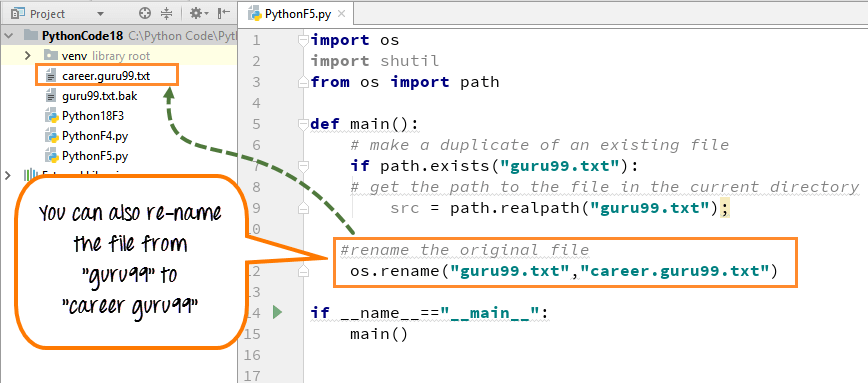
Now, use the os.rename() function to rename the file:
os.rename(current_file_name, new_file_name)
print("File renamed successfully!")
⚠️ Important: Make sure the file exists in the same directory as your script, or provide the full path.
🏆 Handling Errors While Renaming Files
Sometimes, errors can occur while renaming a file. Let’s handle them gracefully using a try-except block.
try:
    os.rename(current_file_name, new_file_name)
    print("File renamed successfully!")
except FileNotFoundError:
    print("Error: The file does not exist.")
except PermissionError:
    print("Error: You don’t have permission to rename this file.")
except Exception as e:
    print(f"Unexpected error: {e}")
🔹 FileNotFoundError – Occurs if the specified file does not exist.
🔹 PermissionError – Occurs if you don’t have the necessary permissions.
🔹 Exception – Catches any other unexpected errors.
🎯 Real-World Example: Rename Multiple Files
Let’s say you have multiple .txt files that you want to rename sequentially (e.g., file1.txt, file2.txt, …). Here’s how you can do it:
import os

files = ["doc1.txt", "doc2.txt", "doc3.txt"]

for i, file in enumerate(files, start=1):
    new_name = f"document_{i}.txt"
    os.rename(file, new_name)
    print(f"Renamed {file} to {new_name}")
✅ This script renames doc1.txt to document_1.txt, and so on.
📝 Best Practices to Rename a Files in Python
🔹 Always check if the file exists before renaming.
🔹 Use error handling to prevent crashes.
🔹 Avoid using special characters in file names.
🔹 Be cautious while renaming system files – accidental changes can cause issues.
🚀 Final Thoughts
Renaming files in Python is quick, simple, and powerful with the os.rename() function. Whether you’re renaming a single file or handling bulk file renaming, Python makes it effortless.
Now that you’ve learned how to rename a file in Python, try automating your file organization tasks. Got any questions? Drop a comment below! 😊