
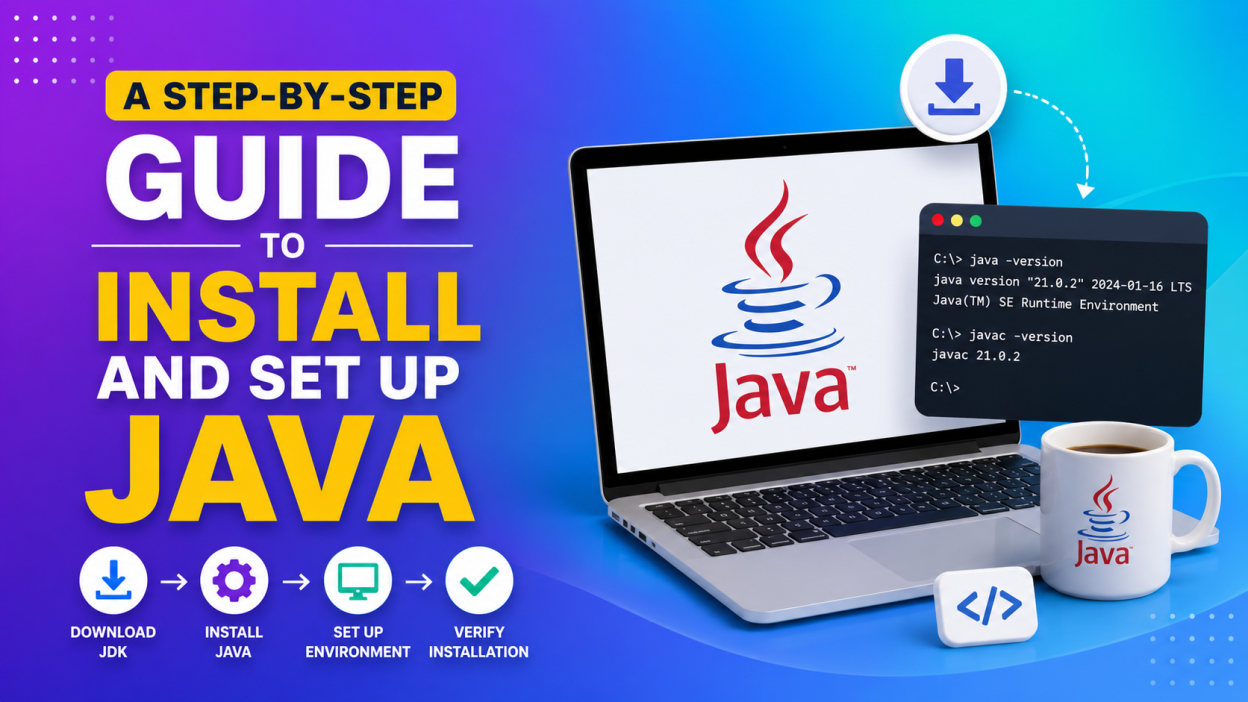
A Step-by-Step Guide to Install and Set Up Java is exactly what I wish I had when I started learning Java. Back then, I spent more time fixing installation errors than actually writing code. If you’ve landed here looking for A Step-by-Step Guide to Install and Set Up Java, don’t worry—you’ve come to the right place.
In this guide, I’ll show you how to download, install, configure, and verify Java on your computer using simple language. You don’t need any prior experience. By the end of this article, you’ll have Java installed and be ready to write your first Java program.
🚀 Key Highlights
- ☕ Learn A Step-by-Step Guide to Install and Set Up Java from scratch.
- 💻 Download the latest Java Development Kit (JDK).
- ⚙️ Install Java on Windows in simple steps.
- 🔧 Configure Java Environment Variables.
- ✅ Verify whether Java is installed correctly.
- 🖥️ Install an IDE to start coding.
- ❌ Learn how to solve common Java installation errors.
- 🎯 Best practices after installing Java.
What is Java?
Before jumping into A Step-by-Step Guide to Install and Set Up Java, let’s quickly understand what Java is.
Java is one of the world’s most popular programming languages. Developers use it to build:
- Android applications 📱
- Desktop software 💻
- Web applications 🌐
- Enterprise applications 🏢
- Banking software 💳
- Cloud applications ☁️
- IoT systems 🔌
One reason Java remains popular is its famous principle:
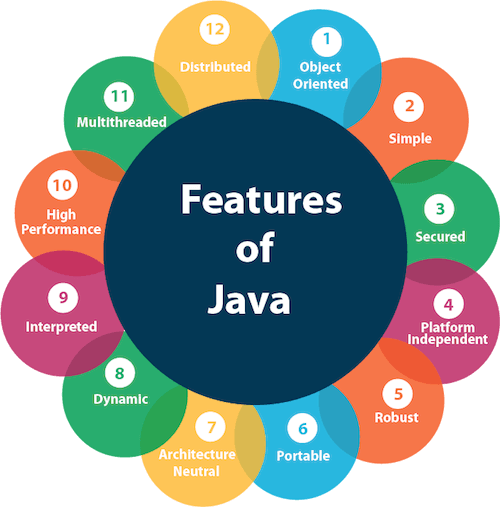
That means Java programs can run on different operating systems with minimal changes, as long as the Java Runtime Environment (JRE) is available.
Why Should You Learn Java in 2026?
When I first learned Java, I wondered if it was still worth learning because so many new languages were appearing.
The answer surprised me.
Java is still widely used by major companies for large-scale applications because it’s reliable, secure, and backed by a massive developer community.
Some reasons to learn Java include:
- High demand in software development
- Strong career opportunities
- Excellent community support
- Cross-platform compatibility
- Object-Oriented Programming concepts
- Large ecosystem of libraries and frameworks
Things You Need Before Installing Java
Before following A Step-by-Step Guide to Install and Set Up Java, make sure you have:
- A Windows computer
- Stable internet connection
- Administrator access (recommended)
- Around 500 MB of free storage
Step 1: Download the Java Development Kit (JDK)
The first step in A Step-by-Step Guide to Install and Set Up Java is downloading the Java Development Kit (JDK).
The JDK includes everything you need to develop Java applications, including:
- Java Compiler (
javac) - Java Runtime
- Development tools
- Debugging utilities
Visit the official Oracle JDK download page:
External Link:
https://www.oracle.com/java/technologies/downloads/
You can also choose OpenJDK distributions from trusted providers if you prefer open-source builds.
Step 2: Choose the Correct Operating System
On the download page, select your operating system.
Examples:
- Windows
- macOS
- Linux
Since many beginners use Windows, this guide focuses on Windows installation.
Download the latest JDK (Long-Term Support version if available).
Step 3: Install Java
Once the installer finishes downloading:
- Double-click the installer.
- Click Next.
- Choose the installation folder.
- Continue clicking Next.
- Wait for the installation to complete.
- Click Finish.
That’s it!
Java is now installed on your computer.
Step 4: Configure Environment Variables
Many beginners skip this step and later encounter issues when running Java commands from the Command Prompt.
To configure Java on Windows:
- Search for Environment Variables in the Start menu.
- Open Edit the system environment variables.
- Click Environment Variables.
- Under System Variables, click New.
- Create a variable named:
JAVA_HOME- Set its value to the JDK installation folder.
Example:
C:\Program Files\Java\jdk-21- Edit the Path variable.
- Add:
%JAVA_HOME%\bin- Save all changes.
This allows your system to recognize Java commands from any location.
Step 5: Verify the Java Installation
Now let’s check whether Java was installed correctly.
Open Command Prompt and type:
java -versionYou should see the installed Java version.
Next, type:
javac -versionIf both commands display version information, congratulations! 🎉 Your Java installation is working correctly.
Step 6: Install a Java IDE
While you can write Java code in a simple text editor, using an Integrated Development Environment (IDE) makes development much easier.
Popular Java IDEs include:
- IntelliJ IDEA
- Eclipse IDE
- Apache NetBeans
- Visual Studio Code (with Java extensions)
For beginners, IntelliJ IDEA Community Edition is often recommended because of its user-friendly interface and helpful features.
Step 7: Write Your First Java Program
Let’s create a simple Java program.
public class HelloWorld {
    public static void main(String[] args) {
        System.out.println("Hello, World!");
    }
}
Save the file as:
HelloWorld.javaCompile it:
javac HelloWorld.javaRun it:
java HelloWorldOutput:
Hello, World!Your first Java program is complete!
Common Java Installation Errors (and How to Fix Them)
Even after following A Step-by-Step Guide to Install and Set Up Java, you might encounter a few common issues.
1. ‘java’ is not recognized as an internal or external command
Cause: The Path environment variable isn’t configured correctly.
Solution: Ensure %JAVA_HOME%\bin is added to the Path variable and restart Command Prompt.
2. ‘javac’ is not recognized
Cause: The JDK isn’t installed or the compiler path isn’t configured.
Solution: Install the JDK (not just the JRE) and verify your environment variables.
3. Wrong Java Version
Cause: Multiple Java versions are installed.
Solution: Update the JAVA_HOME variable to point to the correct JDK and adjust your Path.
4. Access Denied During Installation
Cause: Insufficient permissions.
Solution: Run the installer as an administrator.
Best Practices After Installing Java
After completing A Step-by-Step Guide to Install and Set Up Java, consider these best practices:
- ✅ Keep your JDK updated.
- ✅ Practice coding daily.
- ✅ Learn Object-Oriented Programming (OOP).
- ✅ Explore Java Collections.
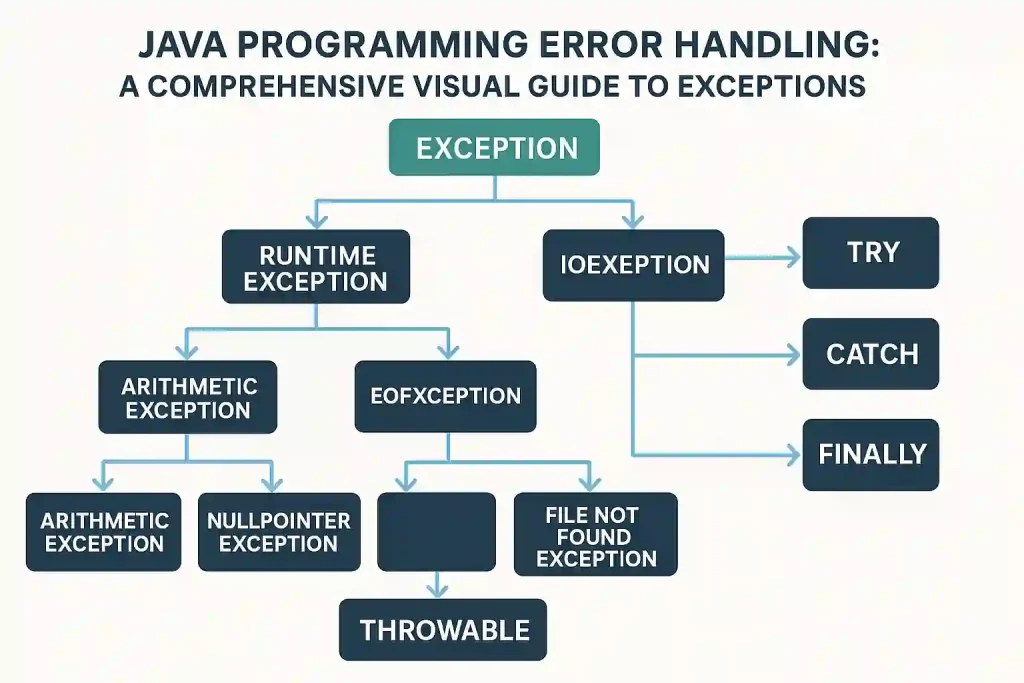
- ✅ Understand exception handling.
- ✅ Learn JDBC and database connectivity.
- ✅ Build small projects to strengthen your skills.
- ✅ Use Git for version control.
Where Can You Practice Java?
The best way to improve is by writing code consistently.
Some popular platforms include:
- HackerRank
- LeetCode
- CodeChef
- Codeforces
- Exercism
These platforms offer coding challenges that help you build confidence and improve problem-solving skills.
Final Thoughts 💡
I still remember the excitement of seeing “Hello, World!” appear on my screen for the first time. It was a small moment, but it gave me the confidence to keep learning. Installing Java might seem intimidating at first, especially when you hear terms like JDK, JAVA_HOME, or environment variables. But once you follow the steps carefully, you’ll realize it’s much simpler than it sounds.
I hope this A Step-by-Step Guide to Install and Set Up Java has made the process easy to understand. Don’t rush through it. Take your time, verify each step, and don’t get discouraged if you run into an error. Every Java developer has faced installation issues at some point.
Once Java is set up, the real fun begins. Start with small programs, practice regularly, and gradually move on to building real-world projects. Every line of code you write brings you one step closer to becoming a confident Java developer. 🚀
Want to Learn More About Java ?, Kaashiv Infotech Offers, Full Stack Java Course, Java Course, Data Science Course, Internships & More, Visit Their Website www.kaashivinfotech.com.
