

How to Master DOM in Selenium for Beginners is a question I asked myself when I first started learning Selenium. Every tutorial kept mentioning the DOM, but nobody explained it in a way that actually made sense. I knew I had to inspect web pages, find elements, and write locators—but I didn’t really understand what was happening behind the scenes.
If you’ve been wondering the same thing, you’re in the right place.
In this guide, I’ll explain How to Master DOM in Selenium for Beginners using simple language, relatable examples, and practical tips. By the end, you’ll understand how Selenium interacts with web pages and why learning the Document Object Model (DOM) is one of the most valuable skills for any automation tester.
📌 Key Highlights
- ✅ What is the DOM?
- ✅ Why the DOM is important in Selenium
- ✅ How Selenium interacts with the DOM
- ✅ Understanding HTML elements
- ✅ Inspecting web pages using browser developer tools
- ✅ Finding elements using XPath and CSS Selectors
- ✅ Common DOM challenges
- ✅ Best practices for beginners
- ✅ Real-world examples
- ✅ Frequently Asked Questions
What is DOM?
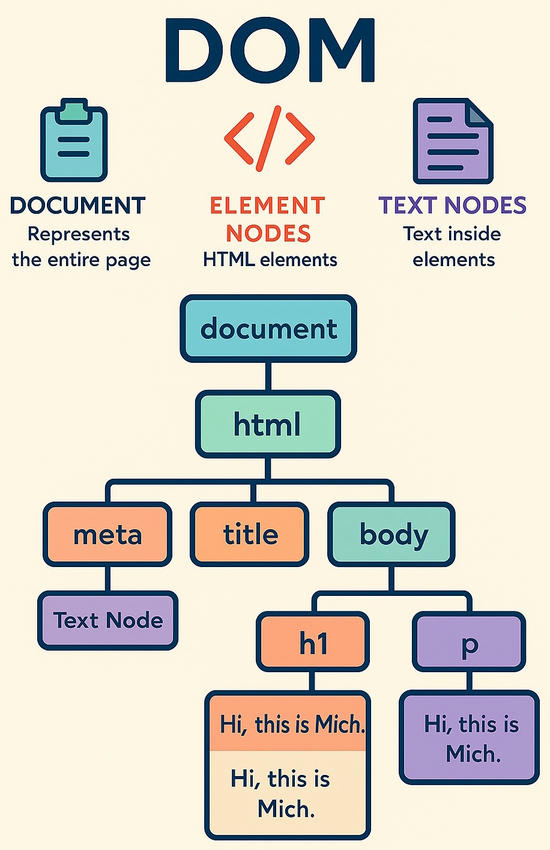
Before learning Selenium, I thought a webpage was just what I saw on my screen.
Then I discovered something interesting.
Every webpage has a hidden structure called the Document Object Model (DOM).
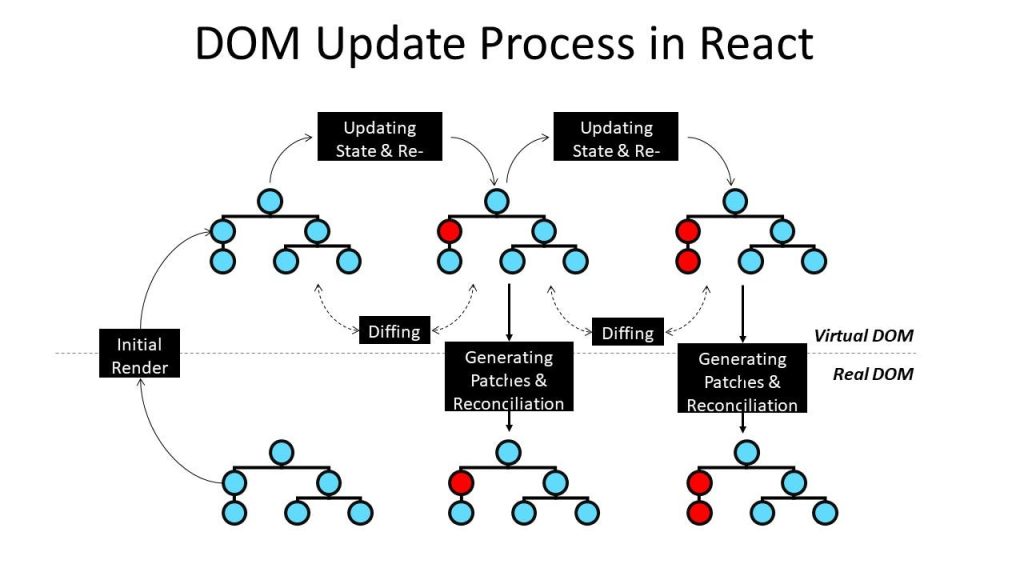
The DOM is a tree-like representation of every HTML element on a webpage. It allows browsers and JavaScript to understand and manipulate web content.
Think of it this way.
Imagine a family tree.
- Grandparents
- Parents
- Children
Each person is connected.
The DOM works the same way.
Every HTML element is connected to another element, creating a structured hierarchy that Selenium can navigate.
Why Should Beginners Learn DOM in Selenium? 🤔
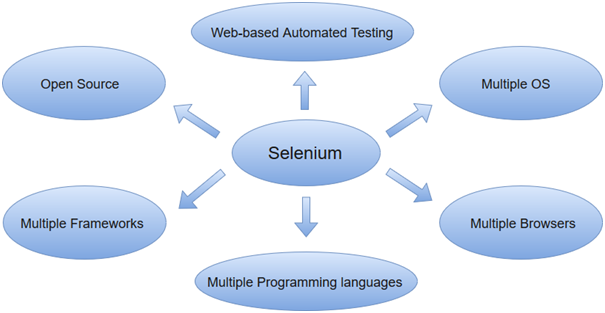
When I started writing Selenium scripts, I kept getting NoSuchElementException errors.
At first, I blamed Selenium.
Later, I realized the real problem was that I didn’t understand the DOM.
Selenium doesn’t “see” the webpage the way humans do.
Instead, it reads the DOM.
If Selenium can’t find an element in the DOM, it can’t click it, type into it, or verify it.
That’s why mastering the DOM is one of the biggest milestones for every beginner.
What is Selenium?
Selenium is an open-source automation testing framework that automates web browsers.
It helps testers perform actions such as:
- Clicking buttons
- Typing into text boxes
- Selecting dropdown values
- Uploading files
- Verifying page content
- Running automated test cases
But here’s the important part…
Selenium performs all these actions by interacting with the DOM.
Understanding the DOM Structure
Let’s look at a simple HTML example.
<html>
   <body>

      <h1>Welcome</h1>

      <input type="text" id="username">

      <button>Login</button>

   </body>
</html>
The DOM hierarchy looks like this:
HTML
│
└── Body
     │
     ├── H1
     ├── Input
     └── Button
Each HTML tag becomes a node inside the DOM tree.
This structure helps Selenium locate elements quickly.
How Selenium Uses the DOM
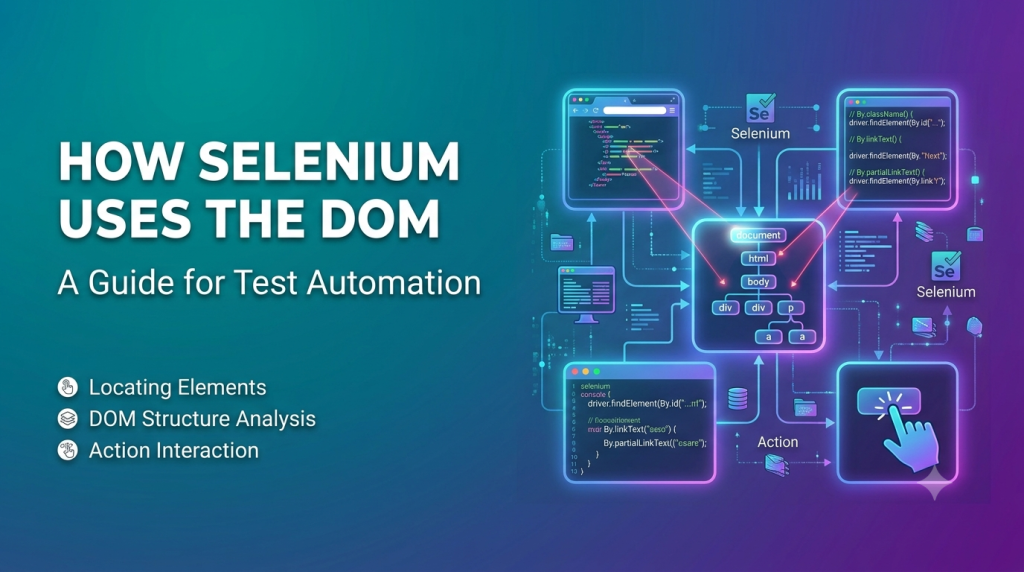
Whenever Selenium executes a command like:
driver.findElement(By.id("username"));It searches the DOM for an element whose id is username.
If it finds it…
✔ Success.
If not…
❌ Selenium throws an exception.
That’s why understanding the DOM is more important than memorizing Selenium commands.
Inspecting the DOM Using Browser Developer Tools
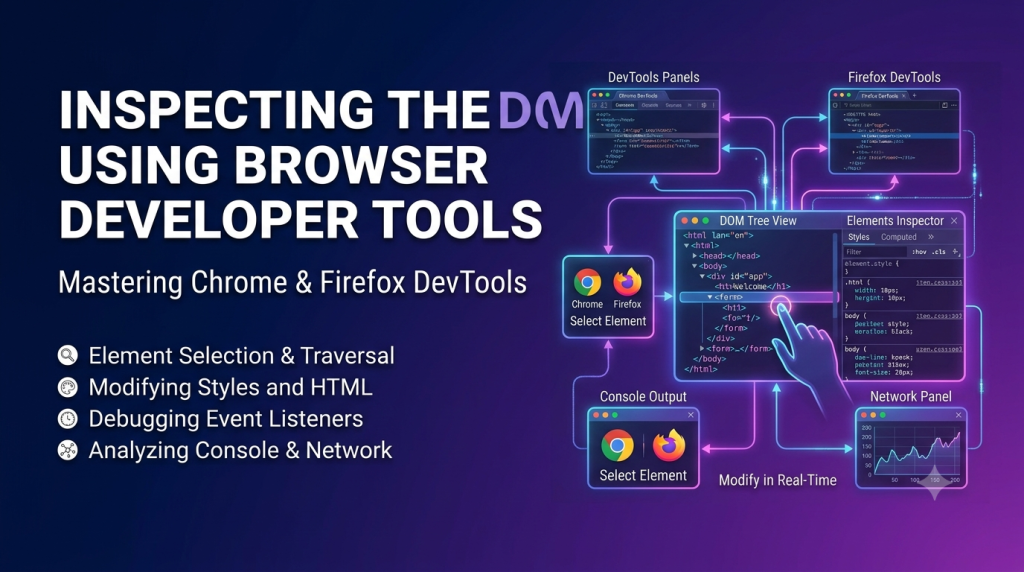
One of the biggest improvements in my Selenium journey happened when I started using browser developer tools.
Most modern browsers let you inspect a webpage.
Simply:
- Open the webpage.
- Right-click any element.
- Select Inspect.
- The browser highlights the corresponding HTML element in the DOM.
This lets you view:
- IDs
- Class names
- Attributes
- Parent elements
- Child elements
You’ll spend a lot of time here as an automation tester.
Common DOM Elements Used in Selenium
Here are some HTML elements you’ll work with regularly.
| HTML Element | Purpose |
|---|---|
<input> | Text fields |
<button> | Buttons |
<a> | Links |
<img> | Images |
<select> | Dropdowns |
<textarea> | Multi-line text boxes |
<label> | Labels |
<div> | Containers |
<span> | Inline text |
Learning these elements makes writing Selenium scripts much easier.
Different Ways to Locate Elements in the DOM
Selenium offers multiple locator strategies.
1. ID Locator ⭐
The fastest and most reliable method.
Example:
driver.findElement(By.id("email"));2. Name Locator
driver.findElement(By.name("username"));3. Class Name
driver.findElement(By.className("login"));4. Tag Name
driver.findElement(By.tagName("button"));5. Link Text
Useful for hyperlinks.
driver.findElement(By.linkText("Home"));6. CSS Selector
One of my favorite locator strategies because it’s usually fast and readable.
Example:
driver.findElement(By.cssSelector("#email"));7. XPath
XPath is extremely powerful.
Example:
driver.findElement(By.xpath("//input[@id='email']"));XPath becomes especially useful when elements don’t have unique IDs.
Real-Life Example
Imagine you’re looking for a book in a huge library.
Would you search every shelf?
Probably not.
Instead, you’d use:
- Shelf number
- Book title
- Author
- Category
The DOM works the same way.
Selenium needs identifiers like id, name, class, XPath, or CSS Selector to locate the correct element quickly.
Without these identifiers, finding elements would be slow and unreliable.
Common DOM Challenges in Selenium
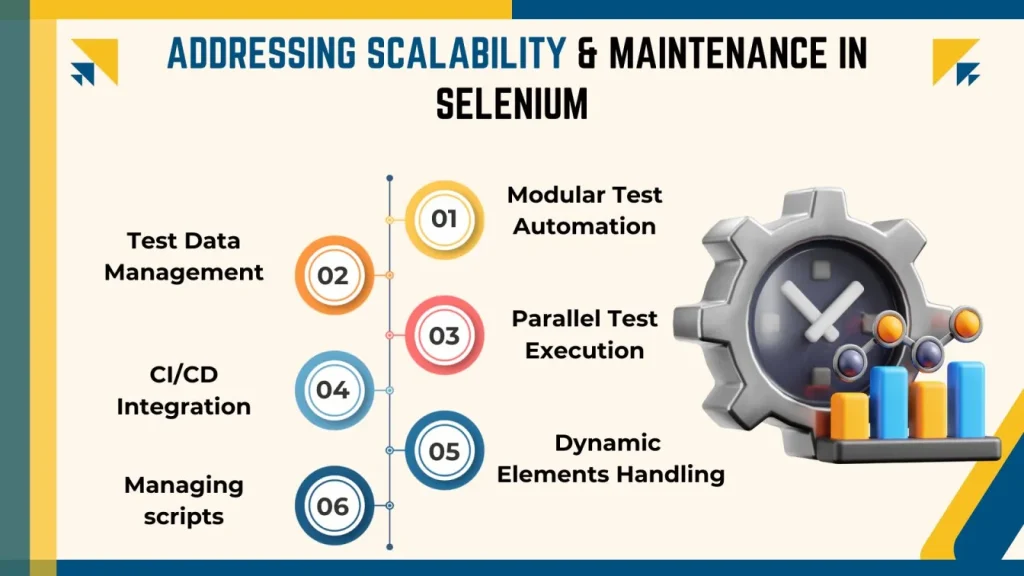
As I practiced automation, I noticed some common problems.
Dynamic IDs
Some websites generate new IDs every time the page loads.
Solution:
Use XPath or CSS Selectors instead of relying on changing IDs.
Hidden Elements
Some elements exist in the DOM but aren’t visible.
You’ll need to understand visibility and wait conditions before interacting with them.
Nested Elements
Sometimes the element you need is inside multiple layers of HTML.
Understanding the DOM tree helps you create accurate locators.
Iframes
Elements inside an iframe belong to a different DOM.
Before interacting with them, Selenium must switch to the iframe.
Best Practices to Master DOM in Selenium
These habits made a huge difference in my learning:
- ✅ Inspect every webpage before writing code.
- ✅ Prefer ID locators whenever possible.
- ✅ Use CSS Selectors for speed and readability.
- ✅ Use XPath only when necessary.
- ✅ Keep locator expressions simple.
- ✅ Avoid fragile locators based on position.
- ✅ Practice on different websites.
- ✅ Learn basic HTML alongside Selenium.
The better you understand HTML, the easier the DOM becomes.
Mistakes Beginners Often Make
I made several of these mistakes myself.
- Trying to memorize XPath without understanding the DOM.
- Ignoring browser developer tools.
- Creating very long XPath expressions.
- Depending on dynamic IDs.
- Not checking whether elements are inside iframes.
- Forgetting to wait for elements to load.
Recognizing these mistakes early can save you a lot of debugging time.
Why DOM Knowledge Makes You a Better Automation Tester
Learning Selenium commands is useful, but learning the DOM changes how you think.
Once you understand the DOM, you can:
- Write stronger locators.
- Debug scripts faster.
- Understand webpage structures.
- Handle dynamic web applications.
- Create more reliable automation frameworks.
From my experience, DOM knowledge separates beginners who struggle from those who become confident automation testers.
Conclusion
If there’s one lesson I’ve learned while working with Selenium, it’s this: don’t skip the DOM.
At first, it might seem like just another technical topic. But once I understood how the Document Object Model represents a webpage, Selenium became much easier to use. I stopped guessing why my scripts failed and started finding the real causes.
My advice is simple—open your browser’s developer tools, inspect different websites, and practice locating elements every day. Even 15 to 20 minutes of hands-on practice can make a big difference.
Remember, mastering the DOM isn’t about memorizing every HTML tag. It’s about understanding how web pages are built and how Selenium interacts with them. Once that clicks, your automation journey becomes much smoother. Happy learning! 😊
Frequently Asked Questions (FAQs)
1. What is DOM in Selenium?
The Document Object Model (DOM) is the structured representation of a webpage that Selenium uses to locate and interact with HTML elements.
2. Why is the DOM important in Selenium?
Without the DOM, Selenium cannot identify or interact with webpage elements such as buttons, text boxes, links, or dropdowns.
3. Which locator is best in Selenium?
When available, ID is generally the most reliable locator. If an ID isn’t available, CSS Selectors and XPath are commonly used alternatives.
4. Is learning HTML necessary for Selenium?
Yes. A basic understanding of HTML makes it much easier to understand the DOM and create accurate locators.
5. How can I practice DOM in Selenium?
Use browser developer tools to inspect websites, identify HTML elements, and practice writing different locator strategies such as ID, Name, CSS Selector, and XPath.
Want to learn more about javascript??, kaashiv Infotech Offers Front End Development Course, Full Stack Development Course, & More www.kaashivinfotech.com.
Related Reads:
- Java vs JavaScript: 3 Key Differences Every Developer Must Know
- What Is the Difference Between “let” and “var” in JavaScript?

